
How to Create a Barcode Online: EAN, UPC, and Code 128 Explained
Making a barcode isn't complicated, but picking the right format for the job is where most people get stuck. Here's how to get it right the first time.
Before you start: figure out which format you actually need
The single most common mistake when creating a barcode online is picking a format before checking what's actually required downstream. If you're listing a product on a retail platform or through a distributor, they will almost always specify EAN-13 (international) or UPC-A (US/Canada) — check your retailer's or marketplace's barcode requirements before generating anything, since a mismatched format means a rejected listing.
If you're labeling internal inventory, assets, or shipments rather than a retail product, you have more freedom — Code 128 and Code 39 are the two most common general-purpose choices, and most inventory software can read either.
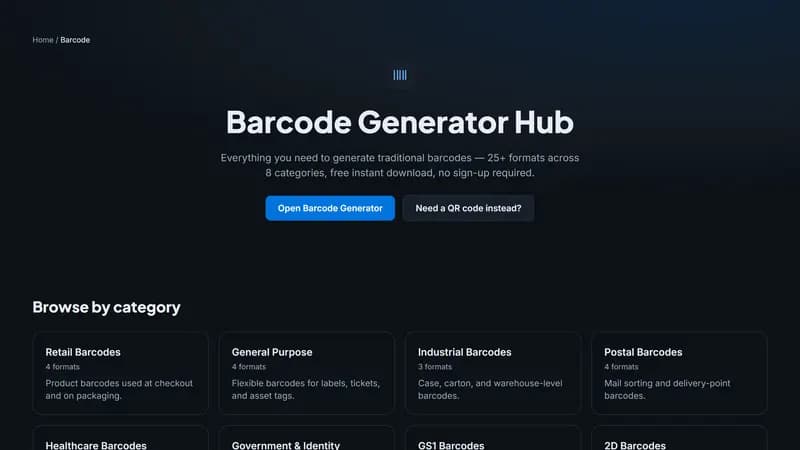
Retail product barcodes: EAN-13, EAN-8, UPC-A, UPC-E
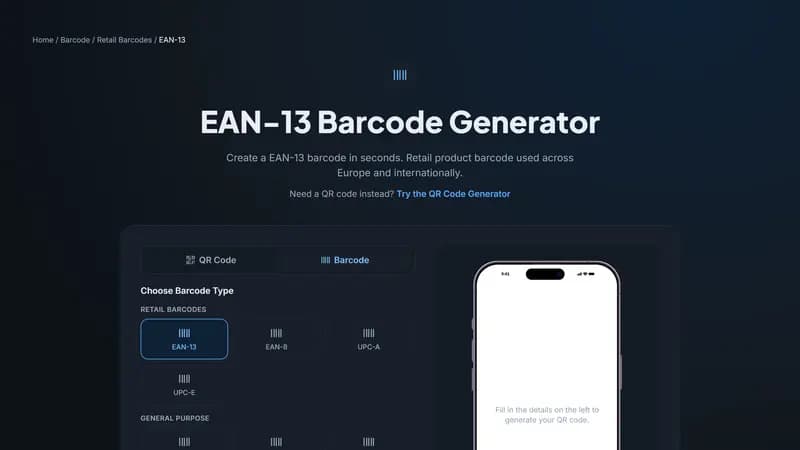
EAN-13 is the international standard, used almost everywhere outside North America and increasingly within it too — 13 digits, the last one a check digit calculated automatically from the first 12. UPC-A is the US/Canada equivalent at 12 digits, structurally very similar.
EAN-8 and UPC-E are compressed versions of the same standards, meant for packaging too small for the full-length code — think a stick of gum or a small cosmetics tube. Use the compressed version only when space genuinely requires it; the full-length format is more universally supported.
Crucially, these numbers aren't something you invent yourself for a real retail product — they come from GS1, the organization that allocates manufacturer prefixes globally. If you're prototyping or don't have a GS1-issued number yet, you can still generate and test a barcode with any valid-format number, but swap in your real GS1 number before it goes to actual retail.
General-purpose barcodes: Code 128, Code 39, Code 93
Code 128 is the most flexible common format — it encodes the full ASCII character set (letters, numbers, and most symbols) in a relatively compact barcode, which is why it's the default choice for shipping labels, internal inventory, and asset tags.
Code 39 is older and less space-efficient, but it's simple, still extremely widely supported by legacy scanners, and doesn't require a check digit — a reasonable choice if you're integrating with older inventory hardware.
Code 93 sits between the two: more compact than Code 39, similar character support, less universally supported than Code 128. Unless you have a specific reason to use it, Code 128 is the safer default of the three.
Step-by-step: creating your barcode
- Decide your format based on the requirements above — retail product, or internal/general use.
- Enter the value to encode. For EAN-13/UPC-A, this is your GS1-issued product number (the check digit is calculated automatically if you leave it off). For Code 128 or Code 39, this can be any text or ID within that format's character limits.
- Customize the bar and background colors if you want — most retail scanners need strong contrast, so keep this close to black-on-white for anything going through a real checkout scanner.
- Download instantly as PNG, SVG, or PDF depending on where it's headed — PDF and SVG for professional print runs, PNG for quick digital use.
Common mistakes that cause a barcode to fail
Using the wrong digit count for the format (EAN-13 needs 12 or 13 digits, not more or fewer) is the most frequent error. Printing at too small a size is the second most common — shrinking a barcode below its minimum readable size (usually around 80% of its designed size) makes the bars too thin for a scanner to distinguish reliably.
Low print contrast is the third major cause: a barcode printed in a light color, on a textured or glossy surface, or at low print resolution can fail even when the encoding itself is perfectly correct.
Testing before a full print run
Always scan-test a printed sample — not just a screen preview — with the actual scanner or scanning app you'll use in production, at the actual print size, before ordering hundreds or thousands of labels. A barcode that decodes perfectly on-screen can still fail once ink spreads slightly on paper.
Choosing between PNG, SVG, and PDF for your barcode
PNG is a fixed-resolution image — fine for a quick digital use case, a website, or a one-off printout at the size it was generated, but it can look blurry or pixelated if scaled up significantly larger than its original dimensions. SVG is a vector format, meaning it's built from mathematical shapes rather than pixels, so it stays perfectly crisp at any size — the right choice whenever the barcode needs to be resized, especially for large-format printing.
PDF is typically the format professional print shops and packaging vendors specifically ask for, since it embeds the barcode as vector data inside a print-ready document format their prepress software already expects. If a vendor gives you a choice, PDF or SVG are almost always the safer options over PNG for anything beyond casual, small-scale printing.
How barcode data gets validated before it's generated
Each barcode symbology has strict rules about what characters and lengths it accepts — EAN-13 needs 12 or 13 digits, Code 39 only accepts uppercase letters, numbers, and a small set of symbols, and so on. A well-built generator validates your input against these rules before generating anything, catching an invalid character or wrong digit count immediately rather than producing a barcode that looks fine on screen but fails a real scan or gets rejected by a retailer's system.
This validation step is worth paying attention to rather than skipping past — if a generator lets you submit clearly invalid input without any warning, that's a sign it isn't checking format compliance at all, and any resulting barcode should be treated with real suspicion before it goes anywhere near a production print run.
Bulk generation for multiple products
If you're generating barcodes for more than a handful of products, doing them one at a time in a browser gets tedious fast. The same principles from batch QR code generation apply here: get your product numbers into a clean spreadsheet first, generate a small test batch to confirm your format and settings are correct, and only then move to the full run — checking a handful of samples from different points in the batch before committing to print.
Choosing bar and background colors, and when not to
Standard black-on-white remains the safest choice for any barcode headed through an automated retail scanner, since scanning equipment is calibrated for maximum contrast and some older or basic scanners struggle with colored bars even when the contrast looks fine to the human eye. Custom colors are reasonable for barcodes that will primarily be scanned by smartphone cameras rather than dedicated retail hardware — but even then, keep the contrast strong (a dark, saturated foreground against a light background) and test an actual printed sample before committing to a colored design for anything beyond casual use.
A note on barcode height
Unlike a QR code, a linear barcode's height doesn't encode any additional data — the height mainly exists to give a laser scanner some vertical tolerance if it doesn't sweep across the exact center of the barcode. This means you generally have more flexibility to adjust height for a specific label layout than you do with the width (which is fixed by the number of encoded characters and their bar-width pattern) — just avoid making a barcode so short that a scanner has very little vertical room for error.
Integrating generated barcodes into existing software
If you're not just printing labels but also feeding barcode data into inventory, point-of-sale, or e-commerce software, check how that system expects to receive the values — most accept a plain text or CSV import mapping product records to their assigned barcode numbers, letting you generate and print labels separately from the record-keeping step. Keeping the actual barcode number as a stored field in your product records (not just embedded in a printed label) makes this integration far more reliable, since you can regenerate a lost or damaged label at any time from the same source number.
Barcode fonts vs. generated images: what's the difference
Some older systems use a "barcode font" — a special typeface that renders barcode-like bars from typed characters — installed directly in design software like Word or Excel. This approach is fragile: a barcode font depends on exact character encoding and font installation working correctly on every machine that opens the document, and a single formatting error (wrong font size, autocorrect changing a character) silently produces an invalid barcode with no warning. A generated barcode image (PNG, SVG, or PDF) avoids this entirely, since the image itself already contains the final, validated pattern — nothing downstream can accidentally corrupt it.
Frequently asked questions
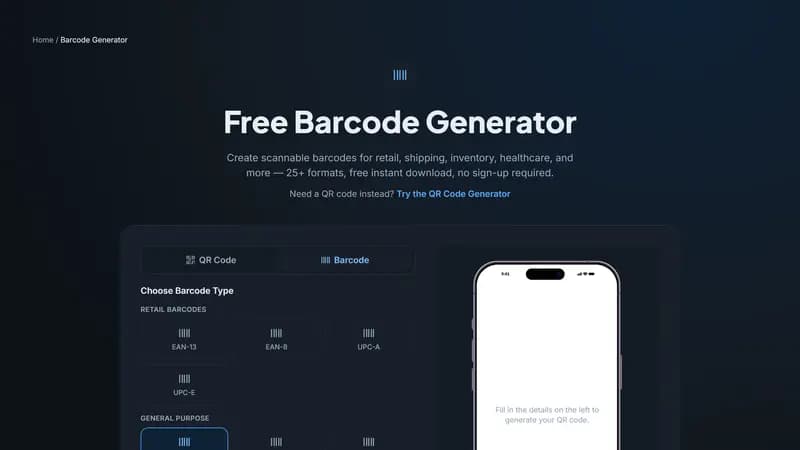
Do I need special software to create a barcode? No — a browser-based generator like the one on this page handles the encoding and rendering entirely online; no desktop software or plugin is required.
Can I create a barcode without a real GS1 number?
Yes, for testing or mockup purposes — any correctly formatted number will generate and scan as a valid barcode. Just remember to replace it with your actual GS1-issued number before the product goes to real retail listing, since an unregistered or placeholder number will conflict with GS1's actual database.
How long does barcode generation take?
Effectively instant — entering a valid value and generating a barcode online takes seconds, with the resulting file ready to download immediately in whichever format you choose.
Working with a design agency or print vendor
If you're handing barcode files off to a design agency for packaging work, or directly to a print vendor, provide the vector format (SVG or PDF) rather than PNG whenever possible, along with the raw encoded value as plain text so they can regenerate it independently if the file is ever lost or needs resizing beyond what the vector format comfortably allows. It's also worth explicitly telling them which symbology and format you're using (EAN-13, Code 128, and so on) even though it's visually obvious to someone experienced — this avoids any ambiguity if the file passes through multiple hands before reaching final production.
Keeping a record of what each generated barcode encodes
It's easy to generate a barcode, use it once, and lose track of exactly what value was encoded — especially across a growing product catalog. Keep a simple running record (even a basic spreadsheet) mapping each generated barcode file to its underlying value and the product or purpose it belongs to, so you can regenerate an identical, correctly formatted barcode later without needing to reverse-engineer it from a printed sample.
One more consideration: barcode reprint and revision tracking
As you generate revisions of a barcode over time (correcting an error, updating a value), keep a simple version note alongside your record of what each file encodes — it's a small habit that prevents an old, superseded barcode file from accidentally being sent to print again months later when someone finds it in a shared folder without context.
A final word on getting this right the first time
The overwhelming majority of barcode problems trace back to one of a handful of root causes covered in this guide: the wrong format for the intended use, an unregistered or placeholder number that made it into a real listing, insufficient print size or contrast, or skipping a physical test-scan before a full production run. None of these require special expertise to avoid — they just require deliberately checking each one before committing to print, which is far cheaper than discovering a problem after five hundred labels are already produced.
Getting started
Pick your format above based on where the barcode is headed, enter your value, and download — every format here is free, with no sign-up and no watermark on the download.


Comments (0)
No comments yet — be the first.
Ready to make one of your own?
Free, no sign-up, and it works in your browser.
Try the Barcode Generator