

How to Create a QR Code Menu for Your Restaurant (Step by Step)
Contactless menus aren't a trend anymore — they're the standard. Here's exactly how to set one up in under five minutes.
Why restaurants are switching to QR code menus
Printed menus are expensive to update, easy to lose, and impossible to change the moment a dish sells out. A QR code menu solves all three problems: guests scan a code on the table, and your latest menu opens instantly on their phone.
It also saves money. Instead of reprinting laminated menus every time a price changes, you update one hosted page and every table's QR code reflects it automatically.
What you need before you start
You'll need your menu as a PDF, image, or web page URL. If you don't have one yet, a simple PDF exported from Canva, Google Docs, or Word works perfectly.
Once you have that link ready, the QR code itself takes less than a minute to generate.
Step-by-step: creating your menu QR code
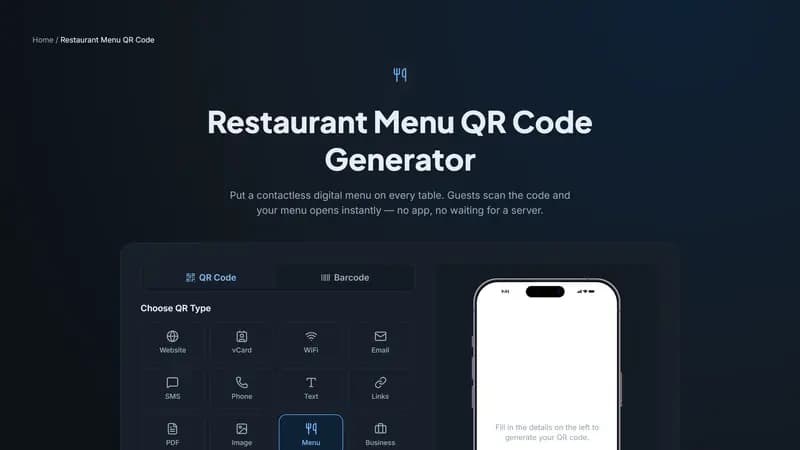
- Go to the Restaurant Menu QR code generator and choose the 'Menu' type.
- Enter your restaurant name and paste the link to your menu (PDF, image, or webpage).
- Pick your brand colors and, if you like, upload your logo so it appears in the center of the code.
- Sign in with a free account and save — this activates the live hosted link behind your QR code.
- Download the PNG or SVG file and print it as a table tent, sticker, or window decal.
Tips for print-ready QR codes
Print at least 3 x 3 cm (roughly the size of a large postage stamp) for close-up table scanning, and use the SVG format if you're printing larger signage — it stays sharp at any size.
Because this is a dynamic QR code, you can update your menu anytime without reprinting a single table card.


Comments (0)
No comments yet — be the first.
Ready to create your Restaurant Menu QR code?
Free, no sign-up, and it works in your browser.
Restaurant Menu QR code generator